For a long time, I assumed tools like Photoshop were basically required for creating decent-looking content online.
Whenever I needed:
- thumbnails
- banners
- social media posts
- presentation visuals
- or simple promotional graphics
I automatically thought:
“This is going to take a while.”
And honestly, that was one reason I avoided making visual content consistently.
But after using Canva more seriously, I started understanding why so many creators and small businesses rely on it every day.
It removed a lot of the friction that normally makes design feel overwhelming.
What Is Canva?
Canva is an online design platform that allows users to create:
- social media graphics
- presentations
- YouTube thumbnails
- posters
- resumes
- videos
- logos
- and marketing materials
without needing advanced design skills.
One reason Canva became so popular is because it makes visual content creation feel approachable even for beginners.
Creating a Canva Account
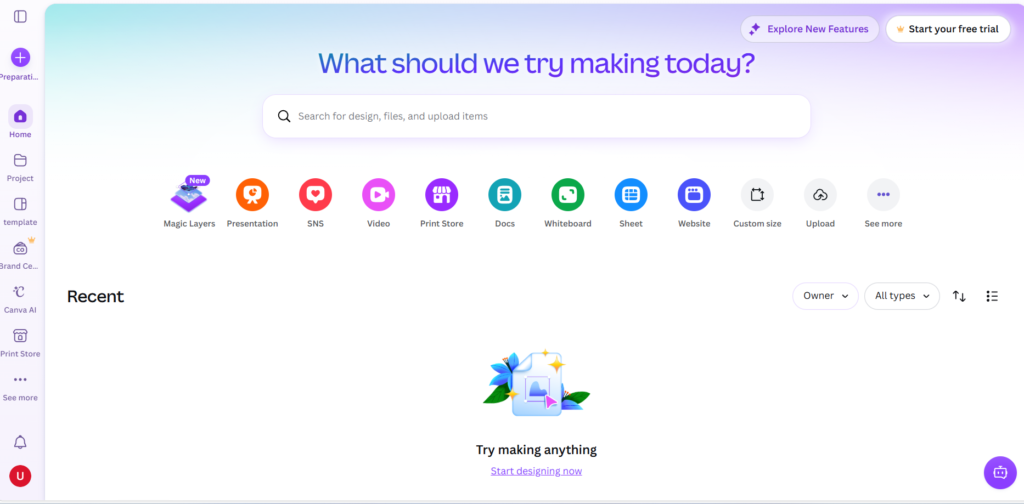
Getting started with Canva is very simple.
First, visit the official Canva website and create a free account.
You can sign up using:
- Apple
- or email
The setup process usually only takes a few minutes.
Why Canva Feels Easier Than Photoshop
The biggest difference I noticed was speed.
Traditional design software often feels powerful but heavy.
Even simple edits can sometimes turn into:
- resizing issues
- layer problems
- font adjustments
- export settings
- and endless tweaking
Canva feels much lighter.
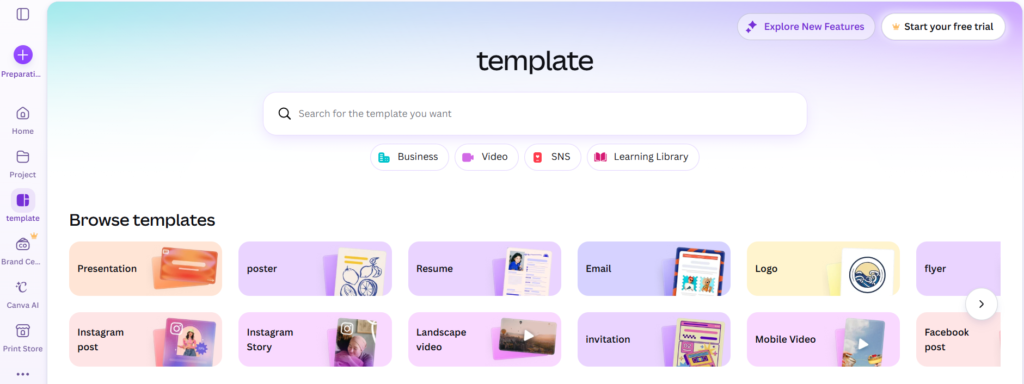
The drag-and-drop workflow makes small tasks much faster.
Instead of spending an hour adjusting tiny details, you can often create usable designs within minutes.
That changes content creation quite a lot.
My First Real Use Case
One of the first things I used Canva for was creating simple visuals for online posts.
Nothing complicated.
Usually:
- titles
- background images
- icons
- and clean layouts
Before Canva, I often avoided making graphics unless absolutely necessary.
But Canva lowered the effort enough that visual content stopped feeling stressful.
That’s probably one reason the platform spread so quickly among creators.
Canva Templates Save Huge Amounts of Time
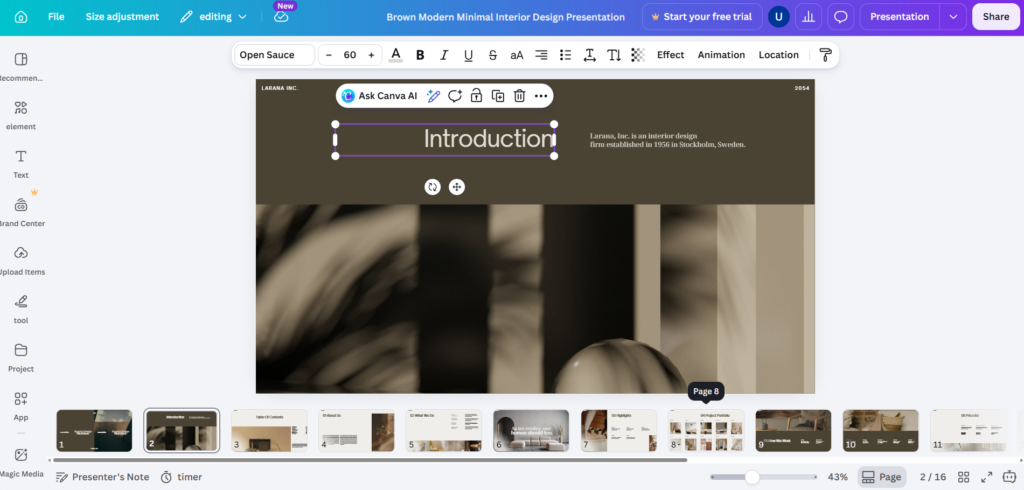
The template system is probably one of Canva’s biggest strengths.
Instead of starting from a blank page, users can browse templates for:
- Instagram posts
- LinkedIn graphics
- presentations
- flyers
- resumes
- YouTube thumbnails
- and business materials
This matters because blank pages often slow people down mentally.
Templates reduce that friction immediately.
You can customize:
- colors
- fonts
- images
- icons
- and layouts
without needing advanced design knowledge.
Canva AI Features Are Growing Fast
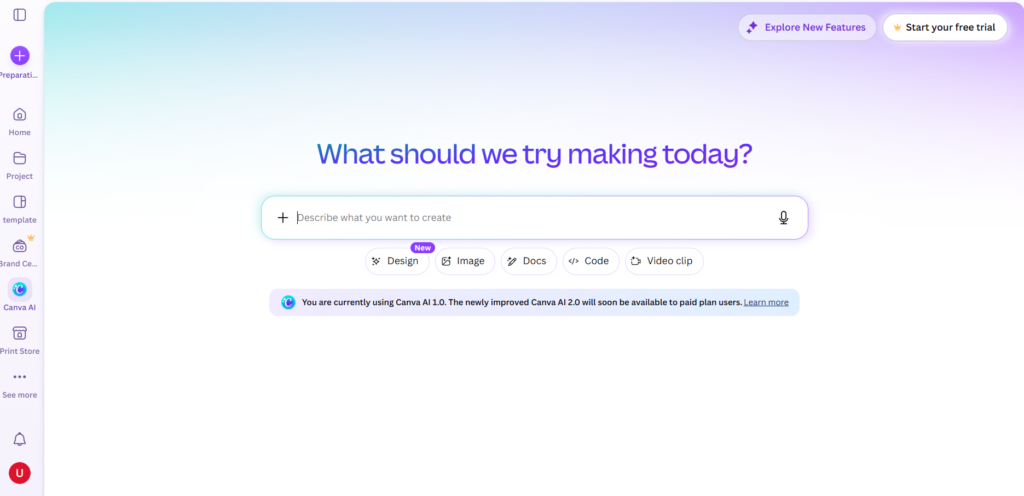
One thing I’ve noticed recently is how aggressively Canva is adding AI features.
The platform now includes tools for:
- AI image generation
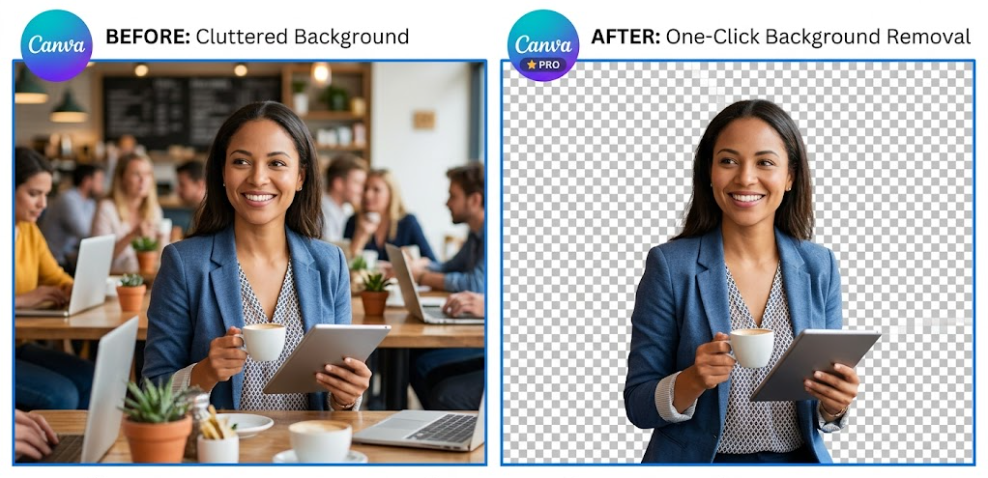
- background removal
- automatic resizing
- text generation
- presentation assistance
- and visual recommendations
This makes the workflow even faster for non-designers.
Especially for people creating:
- blog visuals
- social media content
- presentations
- or quick marketing materials
AI tools significantly reduce repetitive editing work.
Canva vs Photoshop Feels Like a Different Philosophy
Personally, Canva and Photoshop don’t even feel like direct competitors anymore.
Photoshop still feels stronger for:
- advanced editing
- detailed manipulation
- professional retouching
- and high-level graphic work
But Canva feels optimized for speed and accessibility.
Instead of asking:
“How powerful is this software?”
Canva seems focused on:
“How quickly can someone create usable content?”
That’s a very different philosophy.
Why So Many Small Businesses Use Canva
After using it more, I started understanding why Canva became so common among:
- freelancers
- startups
- teachers
- marketers
- creators
- and small businesses
Most people simply need:
- clean visuals
- fast workflows
- and consistent branding
They don’t necessarily need enterprise-level design software.
For many everyday tasks, Canva is simply faster.
Canva Makes Consistency Easier
One underrated advantage is consistency.
Because templates and brand kits are built into the platform, it becomes easier to maintain:
- similar colors
- fonts
- layouts
- and overall style
That’s especially useful for:
- blogs
- LinkedIn content
- YouTube channels
- and business pages
Consistent visuals make content feel more professional over time.
Canva Is Not Perfect
Of course, Canva still has limitations.
For highly advanced design work, professionals may still prefer tools like:
- Photoshop
- Illustrator
- or Figma
Sometimes Canva templates can also start looking repetitive if users rely on them too heavily.
And highly customized designs may feel somewhat limited compared to professional software.
But for everyday content creation, the convenience is hard to ignore.
Final Thoughts
Before using Canva regularly, I assumed creating decent visuals always required:
- expensive software
- technical knowledge
- and lots of editing time
Now I think the bigger shift is accessibility.
Platforms like Canva are making content creation easier for people who are not professional designers.
And honestly, that may be one of the biggest reasons the platform became so successful.
Because sometimes the most useful tools are not the most powerful ones.
They’re the ones people can actually use consistently.
Frequently Asked Questions
Is Canva free?
Yes. Canva offers a free plan with many useful design features.
Is Canva good for beginners?
Yes. Canva is designed to be beginner-friendly and easy to learn.
Can Canva replace Photoshop?
For advanced design work, probably not completely. But for many everyday content tasks, Canva is often much faster and simpler.
Does Canva include AI tools?
Yes. Canva now includes multiple AI-powered features for design and content creation.
What is Canva mainly used for?
People use Canva for presentations, social media graphics, marketing materials, videos, resumes, and many other types of visual content.