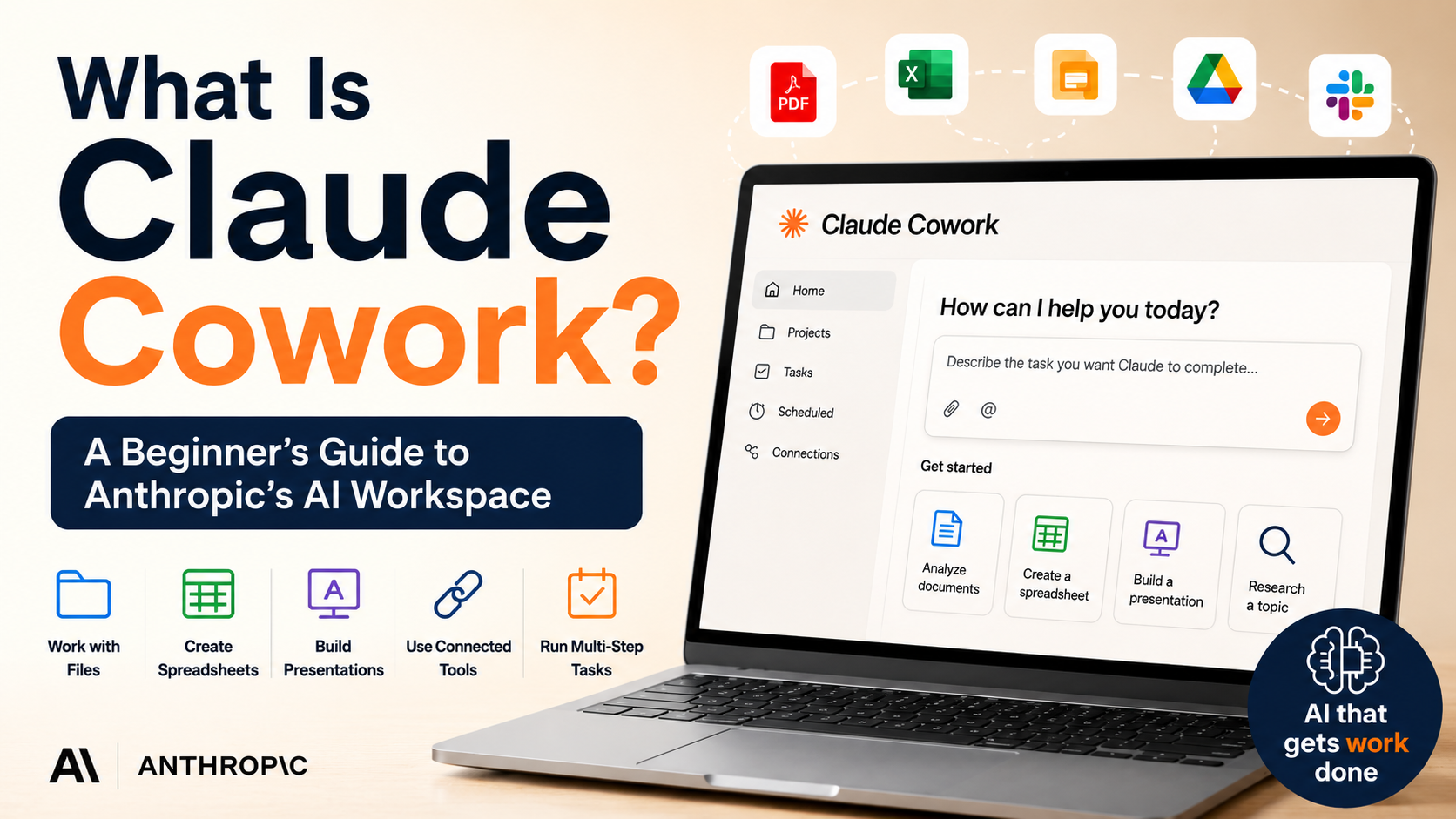
Claude Cowork goes beyond normal AI chat. It can work with files, create documents and spreadsheets, use connected tools, and complete multi-step tasks for you.
I’ve used AI assistants mostly in the same way for a long time.
I ask a question.
AI gives me an answer.
Then I take that answer and do the actual work myself.
If I ask AI to analyze information, I still have to organize the results.
If I ask for a report, I often have to move it into a document.
If I need a spreadsheet, presentation, or finished file, there are usually several additional steps.
Recently, however, I discovered Claude Cowork.
And the idea behind it is slightly different.
Instead of simply asking Claude for an answer, Cowork is designed to let you give Claude an entire task.
That difference immediately caught my attention.
So I decided to take a closer look at what Claude Cowork actually is, how it works, and what an ordinary user could realistically do with it.
What Is Claude Cowork?
Claude Cowork is an agentic workspace from Anthropic built for work that requires more than a single response.
The easiest way I found to understand the difference is this:
Claude Chat
Ask a question → Get an answer
Claude Cowork
Give it a task → Claude plans the work → completes multiple steps → creates the result
Cowork uses the same agentic architecture behind Claude Code, but you don’t need to use a terminal or be a programmer.
That means people who work with documents, spreadsheets, research, presentations, files, or other everyday business tasks can use the same general idea.
And this is where Cowork starts becoming interesting.
What Can Claude Cowork Actually Do?
This was the first question I had.
What does “AI workspace” actually mean?
According to Anthropic, Cowork can work across your files and connected tools to complete longer tasks.
For example, it can:
Read and organize files.
Research information.
Analyze data.
Create formatted documents.
Build Excel spreadsheets with working formulas.
Create PowerPoint presentations.
Work with connected services.
Use multiple sub-agents for complex tasks.
Run scheduled tasks.
And on supported desktop setups, Claude can even interact with your computer when necessary.
So instead of receiving instructions about how to complete something, you can potentially ask Claude to actually produce the finished result.
Example 1: Turn a Folder of Research Into a Report
Imagine you have a folder containing:
PDF reports.
Meeting notes.
Research documents.
A few spreadsheets.
Normally, you would open everything individually, find the important information, take notes, organize it, and finally write a report.
With Cowork, you could instead give Claude access to that working folder and ask:
Prompt:
Review the files in this folder, identify the most important findings, and create a one-page summary report with the key conclusions and supporting data.
Claude can inspect the available files, determine what is relevant, synthesize the information, and produce the requested output.
That’s very different from copying individual documents into a chatbot one at a time.
Example 2: Create an Excel Spreadsheet From Multiple Files
This might be one of the most practical examples.
Suppose you have three monthly sales files:
April.xlsx
May.xlsx
June.xlsx
You could ask Cowork:
Prompt:
Combine these three monthly sales spreadsheets, compare the results, identify the biggest changes, and create a new Excel workbook with a summary sheet and charts.
Instead of only explaining the numbers, Cowork can create a spreadsheet as the final deliverable.
For someone who regularly works with multiple files, this could save a surprising amount of repetitive work.
Example 3: Create a Presentation From Existing Information
Here’s another situation I find interesting.
Imagine you already have the information for a presentation but haven’t actually created the slides.
You could provide your documents and ask:
Prompt:
Use the information in these files to create a 10-slide presentation. Keep the design simple, summarize the most important points, and include a final slide with recommended next steps.
Cowork can create a PowerPoint presentation rather than simply giving you an outline for one.
That distinction matters.
A normal chatbot helps you figure out what to make.
An agent like Cowork is increasingly trying to help you make it.
Example 4: Work Across Connected Apps
Cowork isn’t limited to files.
It can also work with supported connected tools.
This opens up more interesting workflows.
Imagine asking:
Prompt:
Review my meetings from last week, relevant messages, and project documents. Create a summary of what was completed, what is still pending, and what I should prioritize this week.
Instead of manually checking several different services, the AI can gather the relevant context and turn it into one result.
Of course, you need to decide which services and information Claude is allowed to access.
But conceptually, this is a much bigger step beyond normal chat.
Example 5: Let Claude Work While You’re Away
Another unusual feature of Cowork is that cloud sessions can continue running even when you’re no longer sitting in front of the computer.
You can describe the result you want, review Claude’s approach, and let it continue working.
For more complex tasks, Cowork can also divide work into smaller subtasks and coordinate multiple workstreams.
You can check its progress and intervene if you want to change direction.
This is much closer to delegating work than having a normal conversation with AI.
Scheduled Tasks Make It Even More Interesting
Cowork can also run scheduled tasks.
For example, you could create recurring work such as:
A weekly project summary.
A Monday morning briefing.
A recurring research report.
A regular review of business information.
Instead of manually repeating the same prompt every week, the task can run on a schedule.
This is where AI starts moving from something you actively open and use toward something that can perform recurring work for you.
Chat vs Cowork: Which Should You Use?
This is important because Cowork isn’t automatically better for everything.
If I want to:
Ask a quick question.
Rewrite a paragraph.
Brainstorm some ideas.
Translate something.
Explain a concept.
Normal Claude Chat makes more sense.
Cowork becomes useful when the task involves:
Multiple files.
Several steps.
Research and analysis.
Creating a finished deliverable.
Connected tools.
Longer-running work.
Repeated or scheduled tasks.
In other words:
Chat is better for conversation.
Cowork is better for delegation.
That may be the simplest way to understand it.
How Do You Start Using Claude Cowork?
Getting started is surprisingly straightforward.
Open Claude and select Cowork instead of Chat.
Then describe what you want Claude to accomplish.
For desktop users who want Claude to work with local files, you can select a folder where your work is stored.
Anthropic also provides a guided Cowork setup that can help connect tools and configure the workspace for your type of work.
From there, the most important part is not learning complicated software.
It’s learning how to describe the result you want.
Instead of writing:
Analyze these files.
Try this instead:
Analyze these files, compare the key differences, identify the three most important findings, and create a one-page report I can share with my team.
The second prompt tells Cowork what the finished work should look like.
That’s a small difference in wording, but probably an important difference in how we use AI agents.
Is Claude Cowork Free?
Currently, Cowork is designed for Claude’s paid plans, including Pro, Max, Team, and Enterprise.
Availability can differ depending on platform and rollout status.
Some Cowork capabilities also depend on where you’re using Claude.
For example, desktop access is particularly important when you want Claude to work directly with local files, your browser, or applications on your computer.
One Thing You Should Understand Before Using It
Giving an AI agent more capabilities also means giving it more responsibility.
Cowork can potentially read files, write files, use connected services, browse information, and perform actions.
That means permissions matter.
I wouldn’t immediately give an AI agent access to every folder and every service I use.
For my first experiments, I’d rather create a separate folder containing only the files needed for the task.
Then I can see exactly what Claude reads, what it changes, and what it creates.
This is probably a good habit for anyone experimenting with AI agents for the first time.
What I Want to Test Next
Reading about Cowork is interesting.
But I’m much more interested in seeing what happens when I actually give it real work.
So my next test will be simple.
I’ll prepare a few files and ask Claude Cowork to complete a task from beginning to end.
I want to see:
How well it understands the instructions.
Whether it actually creates usable files.
How many times I need to correct it.
What happens when it makes a mistake.
How good the finished result really is.
And most importantly:
Does it actually save me time?
That’s the part specifications can’t tell us.
Final Thoughts
Claude Cowork represents an interesting shift in how we interact with AI.
For years, the basic pattern has been:
Ask → Answer → Do the work yourself
Tools like Cowork are trying to change that into:
Describe the goal → Review the plan → Let AI do the work → Review the result
Whether that works perfectly is another question.
And that’s exactly what I want to find out.
In the next article, I’ll actually give Claude Cowork a real task and document the entire process—including the prompts I use, the mistakes it makes, how I correct them, and the final result.
That’s where things should get much more interesting.