Creating a comparison table sounds simple until you start arranging boxes, adjusting spacing, and deciding where the text should go.
I tried Napkin AI’s free plan to see whether it could make that process easier. I pasted a short comparison of free and paid productivity tools, selected a suggested design, edited the wording, and downloaded the result as a PNG.
The first visual appeared in roughly a minute or less. The interface felt intuitive, and making changes was easy. However, the generated table also dropped a word that mattered to the meaning.
Here is what worked, what I changed, and what I would check before publishing another visual.
What I Tested in Napkin AI
This review covers one short comparison-table test using the free plan. I tested text input, visual suggestions, text editing, and PNG export. I did not test paid features, complex diagrams, or long documents.
I used the following sample text:
Free vs. Paid Productivity Tools
Free tools can be useful for occasional tasks and trying a new workflow. They may limit usage, export options, or customization.
Paid tools may provide higher usage limits, more export options, and additional customization. Their value depends on how often you use those features.
Before upgrading, identify the specific limitation you need to remove.
This was a general comparison of productivity tools, not a description of Napkin AI’s own subscription plans.
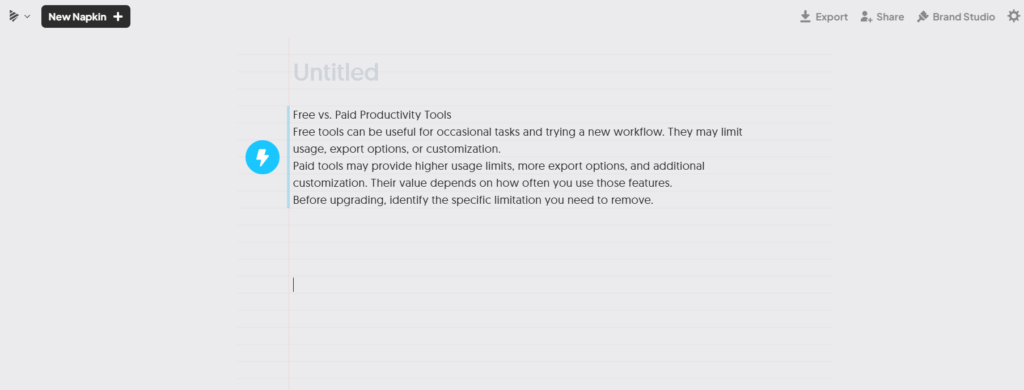
Caption: The sample text I used to test Napkin AI’s visual generation.
Turning the Text into a Visual
On the opening screen, I selected Visual rather than Slides. After pasting the text into a document, I used the blue lightning button beside it to generate visual suggestions.
Napkin AI presented several layouts. This was one of the easiest parts of the experience: I could see the options and choose the design that matched what I wanted.
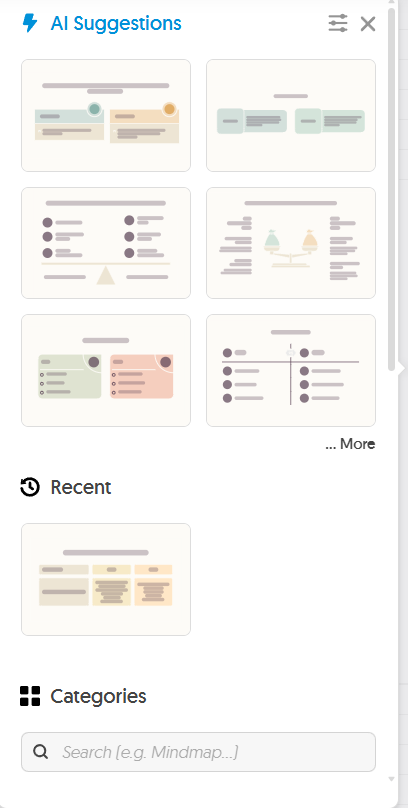
Caption: Napkin AI suggested several visual layouts for the same text.
I chose a comparison table with three columns: Tool Type, Free, and Paid. A Characteristics row contained the descriptions.
The first result appeared in roughly a minute or less. That is my estimate from using the tool, rather than a precisely timed measurement.
I did not have to draw the table, position each box, or arrange the text manually. Napkin AI gave me a starting layout that I could review and edit.
Why I Checked the Wording Before Using It
The table looked organized, but the wording was not an exact match for the original text.
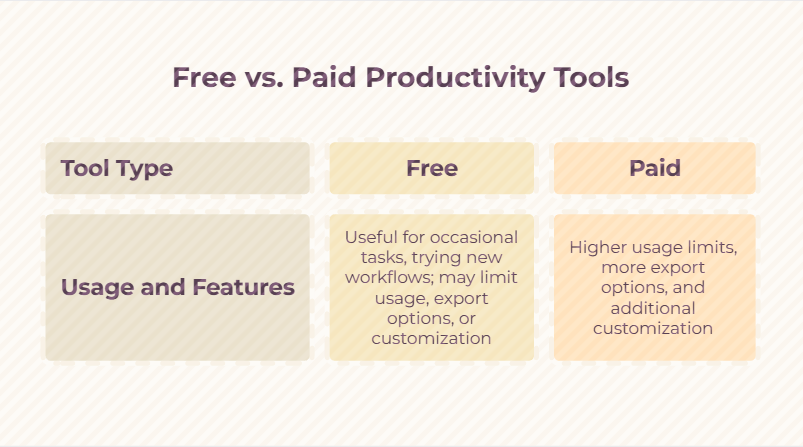
Caption: The initial table left out the qualification “may” from the description of paid tools.
My original text said paid tools “may provide” higher usage limits and additional features. The generated table listed those benefits without that qualification.
That small change made the statement sound more definite. Different paid tools offer different benefits, so I wanted to preserve the original meaning.
I changed the Paid description to:
May offer higher usage limits, more export options, and additional customization.
The table also omitted the final advice about identifying a specific limitation before upgrading. That advice could stay in the accompanying article, but someone viewing the image alone would not see it.
This does not mean every visual needs to include every sentence. It does mean you should decide what can safely be shortened and what needs to remain.
For this example, the layout was ready before the wording was.
Editing the Visual Was Straightforward
Editing the text was easy. I could change the wording in the generated visual and save an updated version.
The interface felt intuitive during this task. I did not need to understand a complicated design workflow. I could look at the available designs, choose one, and make the adjustment I needed.
My test was limited to a short comparison table, so I cannot say how the editor handles a much larger or more complicated project.
For this task, though, the process was easy to follow.
Downloading a PNG on the Free Plan
I exported the edited comparison table as a PNG without upgrading.
The final file included the revised Paid description. The text fit inside the cells without visible clipping, and a “Made with Napkin” mark appeared along the bottom.
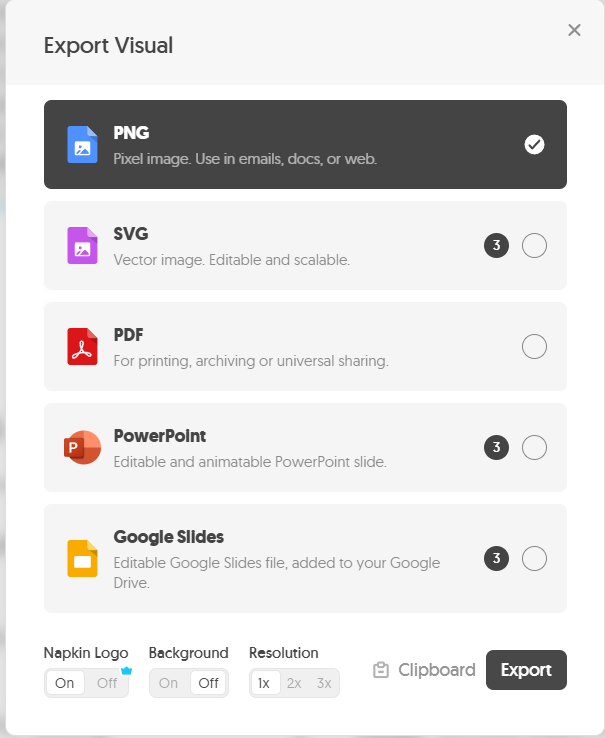
Caption: The edited PNG included my revised wording and Napkin branding.
This was enough to confirm that I could complete the basic workflow on the free plan: paste text, generate a visual, edit it, and download an image.
Before placing a similar table in a blog post, I would check it in the mobile preview. Text that is readable at its original size can become difficult to read when the entire table is reduced to fit a narrow screen.
I would also check the image against the page background and avoid stretching it beyond a size where the text stays clear.
What the Free Plan Included During My Test
The plan screen in my account displayed the following Free allowances during testing:
| Feature | Displayed allowance |
|---|---|
| AI credits | 500 per week |
| Visual editing | Unlimited |
| File imports | PPT, DOC, PDF, HTML, and MD |
| PNG and PDF exports | Unlimited |
| Design options | Built-in styles, fonts, and basic icons |
| Branding | Napkin branding displayed on visuals |
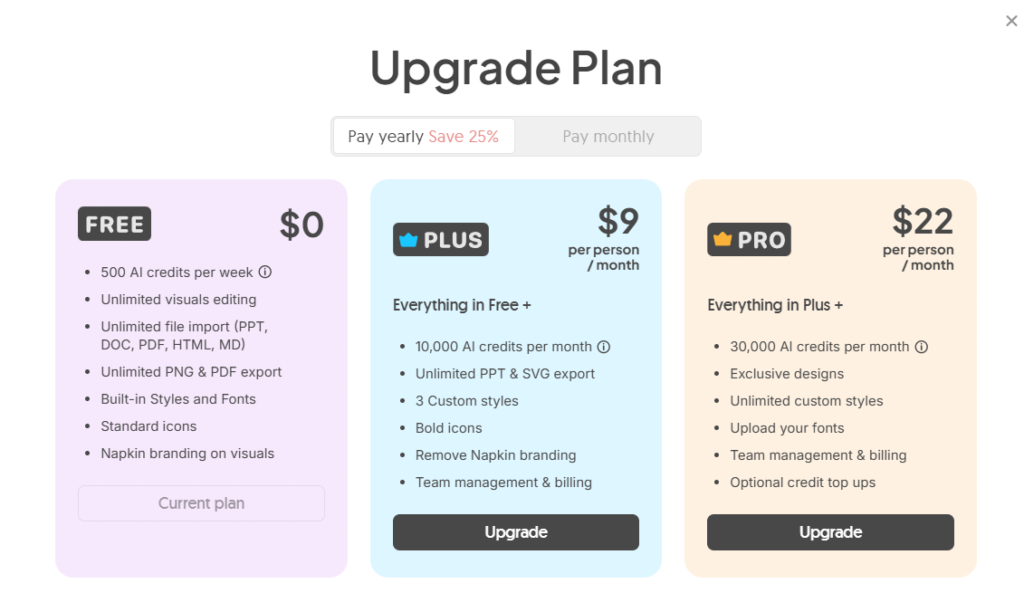
Caption: Napkin AI pricing plans shown during my test, with annual billing selected.
These are the allowances shown in the account screen. I directly tested visual generation, text editing, and PNG export; I did not verify every listed feature.
The credit allowance should not be read as the number of images you can generate. I did not measure how credits were deducted during this test.
The displayed paid prices were under the annual billing option. If you are considering an upgrade, check the billing period and the current Napkin AI pricing page before purchasing.
Who Might Find Napkin AI Useful?
Based on this first test, Napkin AI seems useful for people who have a clear piece of writing and want a visual to support it.
For a blogger, a short comparison table could help readers scan differences that would otherwise sit inside a paragraph. For someone preparing a work document, a generated layout could provide a starting point without arranging every element manually.
The strongest part of my experience was how quickly I could move from text to a design I could edit.
The part that still needed my attention was meaning. A clean layout does not tell you whether a qualification has disappeared or an important sentence has been left out.
I would be particularly careful with statements involving conditions, exceptions, or differences between products.
Is the Free Plan Worth Trying?
For a simple comparison like this one, the free plan let me finish the task without paying.
The first result appeared in roughly a minute or less, choosing a design felt natural, and editing the wording was easy. I also successfully downloaded the updated visual as a PNG.
The visible branding and the need to review summarized text are things to consider. This test does not establish how well the tool performs across every type of content, but it gave me a positive first impression of the basic workflow.
If your goal is to turn a short explanation into an editable visual, Napkin AI’s free plan offers a way to try that process. Start with a small passage, compare the result with your original text, and check the exported image before publishing it.